Fleet concepts
In fleetest, the set of devices (virtual devices and physical devices) that run your tests is called a fleet. You can grow your fleet by adding devices on your Mac and other Macs (runner machines).
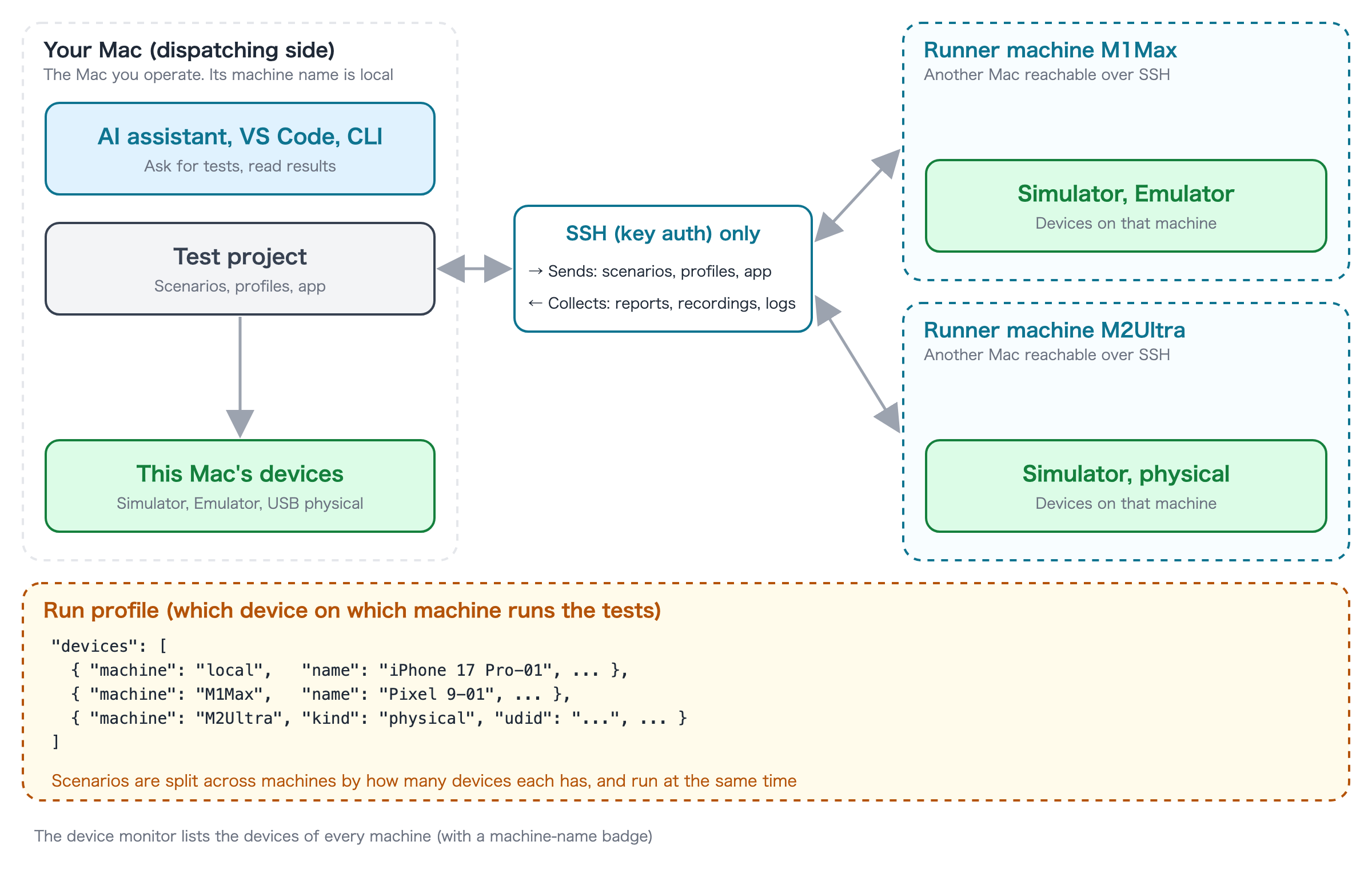
The pieces
| Name | Description |
|---|---|
| Your Mac | The Mac you operate. You ask for tests from an AI assistant, VSCode or the CLI, and read the results here. Its machine name is local |
| Runner machine | Another Mac that runs tests for you. It does not need to be on the same LAN, as long as your Mac can log in to it over SSH |
| Machine name | A name you give a runner machine on your Mac (for example M1Max). Profiles use this name, not a host name or IP address |
| Device | Where the tests run: Simulators and Emulators (virtual devices) and physical devices (a real iPhone or Android). Every device belongs to one machine |
| Run profile | The setting that decides which devices on which machines run the tests. Each device has its machine name in machine |
Machine names
To point at a runner machine, you use a name you give it on your Mac, not its host name or IP address. This name is called the machine name.
- Host: the real network destination. Example:
user@192.168.xxx.xxx - Machine: a name for that host, known only on this Mac. Example:
M1Max. This is what profiles refer to.
Register machine names with fleetest remote machines add or in the Device Monitor's Settings
tab (see Step 2 of Adding a Mac).
To rename a machine, remove and then add it in the registry, and rewrite the devices[].machine of every run profile and
the host of every fleet definition that uses the name. Past result JSON keeps the host name, so it is not affected.
The run profile decides where tests run
The devices listed in a run profile's devices are where the run goes. Each device names its own machine in
machine, so choosing a run profile also chooses which Macs run the tests.
// profiles/runs/ios-m1max.json
{ "app": "myapp",
  "devices": [
    { "platform": "ios", "machine": "M1Max", "name": "iPhone 17 Pro", "osVersion": "iOS 27.0", "model": "iPhone 17 Pro" }
  ] }
- If every device is on one runner machine, the run is sent to that runner machine, and you normally do not need
--runner. - If the devices are split between your Mac and runner machines (or several runner machines), all machines run at the same time and each free device takes the next scenario. A scenario that a faster machine would finish sooner, even after a short wait, is held for it instead of going to a slower machine (estimated from how long past runs took).
- Physical devices work the same way. List a device with
"kind": "physical"and its identifier, with themachineof the Mac it is connected to. - Write
"machine": "local"for devices on your own Mac. Leaving it out is treated as your own Mac, but writing"machine": "local"explicitly is recommended, to match what the extension writes. --runner <name>on the command line takes priority over the profile (pass--runner localto force a run to stay on your Mac). Besides a machine name,--runneralso accepts a host name or IP address directly.- When you narrow a run with
--device <name>and devices with that name exist on more than one machine (you use the same names on your Mac and on a runner), fleetest cannot tell which machine you mean, so the run is refused. Add--runner localfor your Mac only,--runner <machine>for one machine, or--all-machinesto run on every machine that has a device with that name. If the name is on only one machine, the run goes ahead as before.
To run the same scenarios on every machine, create a fleet definition, which lists which machine runs which run profile
within the fleet (TestProjects/<project>/profiles/fleets/<name>.json) and run fleetest run --fleet <name> (--split
splits the scenarios across the machines instead of running all of them everywhere; see "Run it" in Remote runs).
Running a fleet definition is available from the CLI only (not from the extension or MCP), and it is experimental. To run several projects or profiles in one run instead, see --target and a repeated --profile in Running scenarios.
What happens automatically
- Sending: scenarios, profiles and the app are sent from your Mac to the runner machines on every run. You edit only on your Mac and never touch the files on a runner machine.
- Collecting: reports, JUnit, recordings and logs are collected back to your Mac and included in
fleetest results(flaky detection and so on). - Watching: the Device Monitor in the VSCode extension lists the devices of every machine just like your own (with a machine-name badge).
- Keeping versions aligned: before a run, fleetest checks that the runner machine has the same fleetest version as your Mac. If they differ, the run does not start.
The only connection is SSH (key authentication) from your Mac to the runner machines. Your Mac never needs to accept incoming connections.
Overview
Your Mac                                Runner machine
fleetest run --runner M1Max …             ~/fleetest-runner/               ← dedicated base directory
  ├ version check (fleetest, Xcode)  ssh ├── fleetest/          ← clone of fleetest itself (fixed name, shared)
  ├ send (scenarios/config) ───────────> └── users/<issuerId>/work/     ← your work area (per user)
  ├ display output                             ├── TestProjects/<project>/
  └ collect artifacts <──────────────────      └── .build/
Remote runs only use ~/fleetest-runner/ on the runner. If the runner has its own copy of
fleetest elsewhere, it is never touched.
What it can do
| Capability | Supported |
|---|---|
| Send a run to another Mac (from the CLI or the VSCode extension) | ✅ |
| Progress display, cancellation, timeout | ✅ |
| Bring reports, JUnit, recordings and execution logs back to your Mac | ✅ |
Provision a runner from your Mac in one command (remote setup); remove it the same way (remote teardown) |
✅ |
Check or clean up several runners at once (remote status / remote clean) |
✅ |
Run a single fleetest command on a runner (remote exec) |
✅ |
Run on several runners at the same time (a fleet, run --fleet) |
✅ |
Split one set of scenarios across several runners (run --fleet <name> --split) |
✅ |
Run several projects/profiles in one run, each free machine taking the next one (run --target <project>:<profile> repeated, or --profile repeated; CLI only) |
✅ |
Include remote results in fleetest results (flaky detection etc.) |
✅ (collected by default) |
| See remote devices' state and video in the Device Monitor | ✅ |
Running a fleet (run --fleet) is available from the CLI only (not from the extension or MCP), and it is experimental.
How to grow it
| What you want | What to add | How |
|---|---|---|
| Run more devices at once so the whole suite finishes sooner | A Mac | Adding a Mac |
| Share one large Mac across a team | A Mac | Set it up in Adding a Mac; how to use it is in "Sharing one runner between several people" in Remote runs |
| Check on real hardware | Physical devices | Adding physical devices |
| Connect physical devices to another Mac and run them there | A Mac and physical devices | Add the Mac first, then connect the devices to it |
How many Simulators and Emulators one Mac can run at once depends on its memory and CPU. When adding devices to one Mac starts to slow things down, it is time to add a Mac.
Good to know
- A runner machine runs only one run at a time. While someone is using it, other runs wait until it is free ("Sharing one runner between several people" in Remote runs).
- Keep a user logged in on each runner machine. A Mac sitting at the login window cannot run tests.
- You can take a machine out temporarily. Clear "Machine enabled" under "Machines" in the Device Monitor's Settings tab, and no tests are sent to that machine.
Related
- Adding a Mac — preparing a runner machine and adding it to the fleet
- Adding physical devices — adding a real iPhone or Android to the fleet
- Remote runs — running on a runner machine (
--runner,--fleet, the VSCode extension, sharing), plus setups across a router, maintenance and safety