How the text visibility check decides
exist and textIs first find the element in the tree (the accessibility tree). An element can be in
the tree, though, while the screen shows something else on top of it, or while it is cut off outside a
scrolling area. Text visibility check checks, on a screenshot, that the text of the element
matched in the tree is actually drawn on screen, and fails the step when it is not.
- Commands it applies to:
exist/waitForDisplay/select(returns an empty element when the text is not visible) / the positive text and value assertions (textIs/textContains/valueIs, …) - Settings:
fmTextVisibilityCheck(defaulttrue) andocrTextVisibilityCheck(defaulttrue) in the run profile (Run profile settings) - To turn it off for one step, pass
requireVisible: false
It only checks whether the text is visible. Whether the value is the expected one is guaranteed by the tree check, so a different value is not its concern.
How it decides
The two run profile settings (ocrTextVisibilityCheck for OCR and fmTextVisibilityCheck for FM) are independent,
and the check runs while either is on. With both on (the default):
- When the device's OCR reads the whole expected text, the step passes right there (fast).
- Otherwise FM (Foundation Models) also transcribes the text that is drawn, and both the transcript and the OCR reading (or, if nothing is legible, the amount of ink in the region) are matched against the expected text. The step passes if either reads the expected text and fails only when both find it not visible (reading the text is direct evidence it is drawn, while failing to read it also happens on a misread).
- When FM is unavailable (FM failing, or macOS 26), the same rules are applied to the OCR reading alone. On-device OCR is macOS 27+ only, so on macOS 26 neither stage can read text: the check can only fail on geometry or a blank region (no ink); otherwise it passes without confirming the text is drawn, and the step carries the note
visual-text-check-unsupported.
With FM turned off (fmTextVisibilityCheck: false) the OCR reading alone decides; with OCR turned off
(ocrTextVisibilityCheck: false) FM alone decides.
Turning OCR off makes the check slower and removes the judgement for when FM is unavailable (with both off, visual verification does not run). Even with OCR off, OCR re-reads the text when FM's transcription differs from the expected text by up to one character, or by up to the length of the normalized expected text ÷ 5 characters (2 for 10 characters), so that a mix-up of similar-looking characters does not fail the check by mistake (only then, OCR's first-time preparation can take up to 60 seconds).
An element whose centre is off the screen fails before any image is looked at.
Examples
The images are reproductions drawn in the iOS system font (SF, 17 pt) to show each shape. The OCR reading and the result are what the check actually returned for that image.
Visible: passes
| Image | Expected (tree) | OCR reading | Why |
|---|---|---|---|
 |
Game Center |
Game Center |
Read in full |
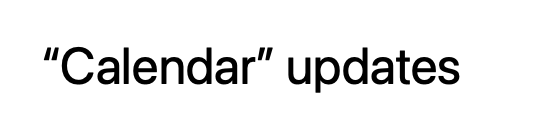 |
“Calendar” updates |
"Calendar" updates |
Curly and straight quotes are normalized before matching |
 |
Unread: 5 |
Unread: 3 |
Text close to the expected text is drawn, so it passes (the value itself is the tree check's job) |
 |
Game Center |
Game Center |
The overlay is translucent and the text under it can be read |
Spaces, letter case, and full-width versus half-width characters are also normalized. When the expected
text is five characters or longer, a misread of about one character (such as ¡Cloud for iCloud) is
tolerated.
Only the beginning is drawn: passes with a note
| Image | Expected (tree) | OCR reading | Result |
|---|---|---|---|
 |
Language & Region |
Language &... |
Passes with the note text-ellipsized (truncation the app intended) |
 |
Notifications |
Notificatio |
Passes with the note text-partially-hidden (more than half is visible) |
- When an ellipsis (
…) is drawn at the end, the step passes however much was read. Japanese fonts draw…as dots at the middle of the line, and OCR reads them as•••or a row of middle dots, so a row of dots also counts as an ellipsis. - With no ellipsis, the step passes when more than half of the expected text is drawn. The note reads
part of the text is hidden.
Not visible: fails
| Image | Expected (tree) | OCR reading | Why it fails |
|---|---|---|---|
 |
Game Center |
Game |
Half or less is drawn (most of the text is hidden) |
 |
Game Center |
Center |
Only the end is drawn, so the beginning is covered (covered) |
 |
Game Center |
(nothing legible) | No text is drawn (notRendered) |
 |
Game Center |
(nothing legible) | A plain overlay hides all of it (notRendered) |
 |
Game Center |
Walpaper |
Unrelated text is drawn there (textMismatch) |
The failure message is text visibility check failed (on screen): present in the tree but not visually visible [<reason>] .... When FM is turned off and the OCR reading decided the failure it adds judged by OCR, and when FM
is turned on but was unavailable and OCR alone decided it adds judged by OCR alone because FM gave no verdict. In both cases the step does not fail at once: it keeps taking new screenshots for its
wait time (waitSeconds) and passes if the text becomes visible.
Shapes OCR cannot judge: FM decides
| Image | Expected (tree) | OCR reading | Result |
|---|---|---|---|
 |
Game Center |
(nothing legible) | Nothing legible, but something like a button or an icon is drawn. FM transcribes it (nothing), matches that, and fails the step |
OCR cannot judge a shape where another picture is drawn over the text, or where only part of the text is left. FM judges those. Where FM is unavailable, they pass unverified.
When a step fails
-
Check that the screenshot is not stale: the tree can be on the right screen while the screenshot still shows the previous one. This has happened while the VSCode extension's Device Monitor was streaming an Android Emulator's screen. Look at whether the failure screenshot in the report shows a different screen.

The image above is a real case: the crop at the position of the expected
agree=false. What it shows is the grey area of the map screen from the previous scenario. -
Check that it really is not covered: a keyboard, sheet or banner over the element.
Limitations
- A short truncation that shows only the first few characters can fail: OCR may read
…as a single dot, which does not count as an ellipsis. - A translucent overlay counts as visible as long as the text under it can be read.
- FM sometimes reads a Japanese kanji as the simplified Chinese form of the same character. If OCR reads the whole text the step still passes, but OCR cannot read faint text (an input field's placeholder, for example), so text that is drawn can fail. When the failure says
only CJK ideographs differ, check the drawn character in the failure screenshot before changing the expected text. - On iOS, when a list row (cell) has no text child element, the label is checked in the row's own frame, by OCR alone (FM is not used). If some text is read but
the expected text is missing or only its beginning is read, the step fails and the note
row-label-not-readis left in the result JSON (a clipped row, a row under the tab bar, or a list squashed flat in landscape so the rows are not drawn). A reading that differs only in upper/lower case or in glyphs OCR easily confuses (oand0;l,i,|and1) does not fail (for example, a drawn "yo1" read as "Y01"). A row where no text is read at all (an icon, an image, or a plain colour box drawn without text) does not fail. With the OCR check turned off (ocrTextVisibilityCheck: false) this check does not run. Buttons are not checked this way (an icon button's label is a description that is not drawn). - In iOS's default mode (inapp-boost), the check normally uses the picture the app draws itself (it is faster). That picture
shows neither the keyboard nor system alerts (permission requests and the like), so the whole screen is captured
(through XCUITest) only when the element tree reports the keyboard, or when a system alert was in front the first time
it was checked in that phase (
condition/action/expectation; checked once per phase). Covers that are neither the keyboard nor an alert (a notification banner, for example), and an alert that appears in the middle of a phase, are missed (it shows from the next phase on). - When the screenshot is black everywhere except the bottom edge (the home indicator or navigation bar),
the picture was not captured or the display is frozen, so the check is skipped (the result JSON note
blank-screenshot). - When the text sits inside a WebView, nothing covers it in the element tree, and its area of the
screenshot is a single colour, the screenshot missed the WebView layer (seen on iOS), so the check is
skipped (the result JSON note
webview-capture-blank). Text that the page hides by drawing over it without any element in the tree is not caught in this case. - Where FM is unavailable, shapes OCR cannot judge (the "FM decides" shape above) are not verified.
fleetest doctor --fm-onlytells you whether FM is available. - The
On-device OCRline offleetest doctortells you whether OCR works (it reads an image with known text). While OCR reads nothing, no OCR-based judgement can be relied on (rebooting the Mac has cleared this state before).
Screen rendering check (iOS Simulator only)
On an iOS Simulator the app's drawing can break and stay broken until the app is relaunched, while the element tree still looks normal. The app area becomes a single colour, or shapes are drawn but no text at all. A check that only reads the element tree would pass on such a screen. When an assertion passes without the text visibility check having confirmed by pixels that text is drawn, the tool takes one screenshot at the next checkpoint (right before launchApp / restartApp / clearAppData / terminateApp, before afterEach, and at the end of the scenario). If the screenshot is still a single colour, or none of the text elements in the tree is drawn (at least 3 of them), after a retake 1 second later, the scenario fails with a step named screen rendering check (…). The message lists the facts: what was seen, and the names of the checks that passed without looking at the screen.
What to do: run the scenario again. If it keeps failing, relaunch the app (or restart the Simulator) and check that the app draws normally. This check does not run on physical devices or Android, and the tool does not say what caused the broken drawing.