Reading results and investigating failures
Every time you run tests, the results are kept, pass or fail. You can leave the reading to the AI assistant too. What fleetest records is only the facts: at which stage, which operation, and how it failed. It does not jump to conclusions about causes.
1. Make one fail on purpose
To practice investigating, temporarily change an expected value in AddToCart.swift so that it fails.
Prompt for the AI
In the first test of AddToCart.swift in project1, temporarily change just one expected value, the one that checks the product name in the cart,
to the nonexistent product name "Phantom Product A".
Then run all the scenarios of project1 on iOS (ios-run) and report only pass or fail. Don't fix it.
Expected result:
- The first test in
AddToCart.swiftfails. - The other tests pass.
2. Have the results summarized
Prompt for the AI
Summarize the latest run of project1. If anything failed, list the failed scenarios and the steps where they failed.
If you do it manually (click to show details)
- Each scenario has a Markdown report under
TestProjects/project1/reports/. - In VSCode, the Test Explorer shows pass/fail directly, and you can open the report from there. The Dashboard tab of the monitor (click fleetest in the status bar at the bottom of VSCode) also shows the run history and success rate.
Expected result:
- The first test in
AddToCart.swiftis listed. - The step where you changed the expected value is listed.
3. Have the cause investigated
Prompt for the AI
Use the reports to find out why scenarios failed in the latest run of project1, and report back.
For each failure, determine whether it is an app bug or a problem with how the test is written.
Don't fix the scenarios yet.
- Always include "Don't fix the scenarios yet." in the prompt. If you ask for investigation and a fix at once, a test that failed because of an app bug may get made to pass by adjusting the expected value to match the app.
- Read the report first, then you decide whether to fix it.
Expected result:
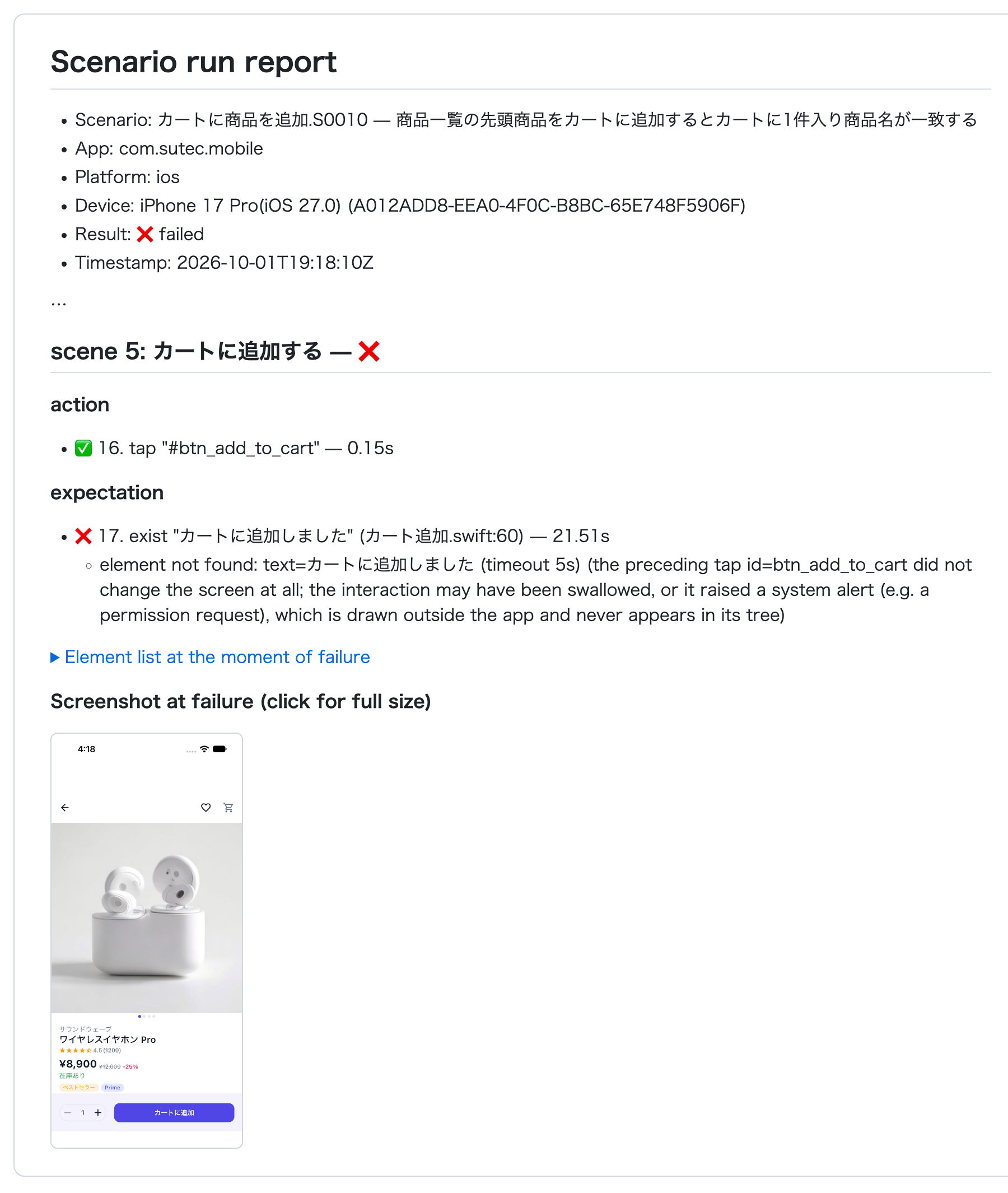
- The report contains the failed step, the failure message, and the element list and screenshot at the moment of failure (below is from the sample app).
- This time it reports that the expected product name was not in the cart.
(The image below is an example from a different scenario; use it to see how the report is laid out.)
4. Restore it and re-run only what failed
Prompt for the AI
In AddToCart.swift in project1, restore the expected value to the original product name, and re-run only the scenarios that failed on iOS last time.
If you do it manually (click to show details)
../fleetest/.build/debug/fleetest run --project project1 --profile ios-run --failed
Results are recorded per profile, so run it with the same profile as last time.
Expected result:
- Only the one test that had failed runs, and it passes.
Next: Running smoke and regression separately