Measuring app responsiveness
A follow-up to the Quick start: the shortest path to experiencing response measurement by running the sample app (SUT Store) on an Android physical device. It assumes you have finished the Quick start up to step 7 (creating one scenario for the login screen and running it).
Response measurement runs the scenarios you already have on a physical device and measures, for every action, how long the app takes to react and how long until the next action becomes possible. The scenarios need no change. The definition of the values, the whole setting and the list of reasons a value is missing are in the reference: Response measurement.
Only one Android or iOS physical device can be measured (not the Simulator or the Emulator). This page uses Android, whose preparation is short. For iOS, see "Measuring on iOS" at the end.
1. Connect the device
Turn on USB debugging on the Android device, connect it to the Mac over USB and check that adb devices lists it as
device. Set the screen lock to none. For the details, see "Android" in Adding physical devices.
List of devices attached
R5CT1234ABC    device
The left column is the device's identifier (serial). Step 4 uses it.
Prompt for the AI
Check that the Android physical device connected over USB shows up in adb as "device", and tell me its identifier (serial).
Expected result:
adb deviceslists the device asdevice- You know its identifier (serial)
2. Write the Mac's LAN address in the machine settings
The sample app's servers (the services declared in compose.yaml) are normally published only inside the Mac (127.0.0.1).
A physical device has to reach them at the Mac's LAN address, so you write your consent to publishing on that address in
the machine settings. Without it, a run that includes a physical device does not start.
The machine settings (~/.config/fleetest/config.json) are written by hand by the person who owns this Mac. The AI
assistant cannot write them (with Claude Code, the setup adds a rule that refuses edits to this folder, because the
switch that loosens the sandbox lives there). Finding the address is something you can ask the AI.
Prompt for the AI
Tell me this Mac's LAN IPv4 address.
If you do it manually (click to show details)
ipconfig getifaddr en0 # e.g. 192.168.1.10 (en0 for Wi-Fi, en1 or similar for wired)
Expected result:
- You know the LAN IPv4 address
Then write it yourself in ~/.config/fleetest/config.json (create the file if it does not exist).
{ "services": { "publishForPhysicalDevices": "192.168.1.10" } }
The examples below use 192.168.1.10. Replace it with your own address.
Expected result:
~/.config/fleetest/config.jsonhasservices.publishForPhysicalDevices
3. Build the app for the physical device
The sample app bakes the server's address into the build. The APK built in the Quick start is for the Emulator
(10.0.2.2), so from a physical device it cannot reach the server. Rebuild it with the Mac's LAN address as the
destination and keep it in a separate place from the Emulator build.
Prompt for the AI
Rebuild the sut-ec-mobile Android app with the server address set to 192.168.1.10 (-Psutec.server.host.android) and copy the resulting APK to ../sut-ec-mobile/build/android-physical/.
If you do it manually (click to show details)
Run in the sut-ec-mobile folder.
./gradlew :androidApp:assembleDebug -Psutec.server.host.android=192.168.1.10
mkdir -p build/android-physical
cp androidApp/build/outputs/apk/debug/androidApp-debug.apk build/android-physical/
When you use the Emulator APK again later, rebuild without -P (the copy for the physical device stays).
Expected result:
- The build succeeds
build/android-physical/androidApp-debug.apkexists
4. Make a run profile for measurement
Make a run profile android-response that uses the physical device and the APK built for it, and turn the measurement on.
Keep it separate from android-run, the profile for pass/fail tests: a measurement turns off recording and the text
visibility check, so a profile that has them turned on is refused. It also pins the run to one device.
Prompt for the AI
Create a fleetest run profile android-response that uses the Android physical device connected over USB. The app profile is android-physical-app, the APK is ../sut-ec-mobile/build/android-physical/androidApp-debug.apk, the app ID is com.sutec.mobile.android and the display name is "SUT Store". Write responseMeasurement: true and responseRepeat: 5 in the run profile.
If you do it manually (click to show details)
Run in the work folder (--serial is the identifier from step 1).
../fleetest/.build/debug/fleetest profile setup --platform android --app-id com.sutec.mobile.android \
  --app-name "SUT Store" --app-ref android-physical-app --run android-response \
  --serial R5CT1234ABC --device-name "Pixel 8" \
  --app-path ../sut-ec-mobile/build/android-physical/androidApp-debug.apk
Add responseMeasurement and responseRepeat to the resulting TestProjects/project1/profiles/runs/android-response.json
(if fmTextVisibilityCheck: true is written there, for example by a profile saved from the extension's form, set it to false).
{
  "app": "android-physical-app",
  "devices": [
    { "platform": "android", "machine": "local", "name": "Pixel 8", "kind": "physical", "serial": "R5CT1234ABC" }
  ],
  "responseMeasurement": true,
  "responseRepeat": 5
}
responseRepeat is how many times the same scenario runs back to back (default 5, up to 50). More repeats give a steadier median.
Expected result:
profiles/runs/android-response.jsonhasresponseMeasurement: trueandresponseRepeat: 5fmTextVisibilityCheck: trueis not written
5. Measure
Prompt for the AI
Run the login scenario created in the Quick start with the fleetest android-response profile.
If you do it manually (click to show details)
../fleetest/.build/debug/fleetest run --profile android-response --scenario <ClassName>
<ClassName> is the file name (without extension) of the scenario in TestProjects/project1/scenarios/.
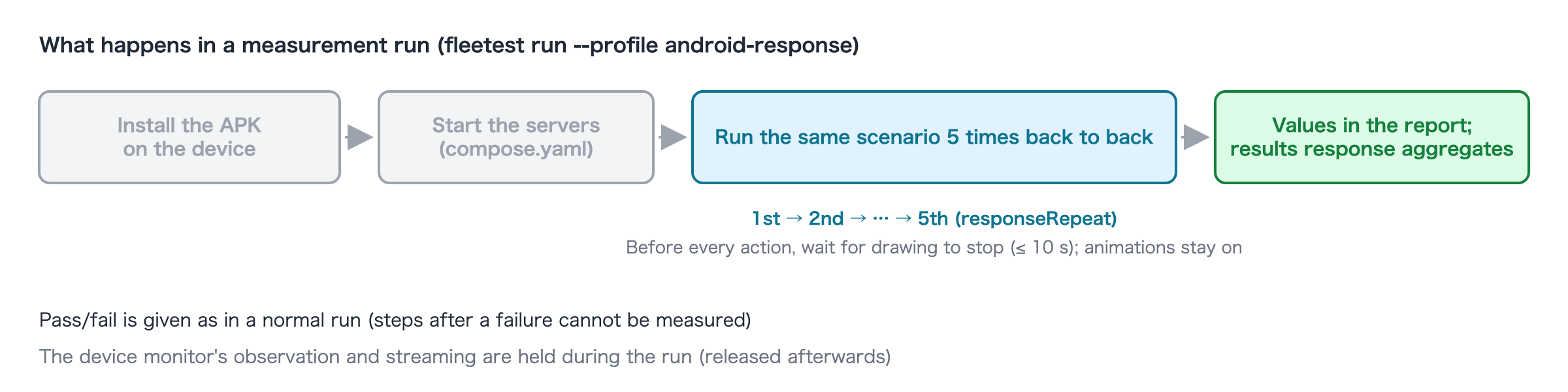
This is what happens inside the run.
- The APK for the physical device is installed on the device and the servers are started (as in the Quick start run).
- The same scenario runs 5 times back to back. Before every action it waits for the app to stop drawing (up to 10 seconds), so each run takes longer than usual.
- The device's animations stay on (a normal run turns them off), because the time users experience is what is measured.
- The Device Monitor's observation and streaming are held during the run. Tiles that stop updating are normal.
- Pass/fail is given as usual. In a scenario that failed, the steps after the failure cannot be measured.
Expected result:
- The same scenario runs 5 times back to back and finishes
6. Read the results
Each step in the scenario report (TestProjects/project1/reports/) gets its values.
- ✅ 3. tap "Log in" — 1.21s · first frame 213 ms · ready 283 ms
first frame= time to first frame (from the tap until the app first redraws the screen)ready= time until ready (from the tap until the element the scenario operates next can be pressed)- A
readyof a few milliseconds is not an anomaly (a row whose next element stays in the same place through the transition is pressable from its start).
Expected result:
- The action steps in the report carry
first frameandreadyvalues
Now look at the 5 runs together.
Prompt for the AI
List the fleetest response measurement results per step, with the median and the change from the previous run.
If you do it manually (click to show details)
../fleetest/.build/debug/fleetest results response
One row per step (example).
scenario     step                              device       host    n  median ms  p90 ms  busy  ready n  ready median ms  ready p90 ms  prev median ms  delta
-----------  --------------------------------  -----------  ------  -  ---------  ------  ----  -------  ---------------  ------------  --------------  -----
Login.S0010  s1 action tap tap "Log in" #1     R5CT1234ABC  my-mac  5  212        230     0     5        279              301           -               -
Login.S0010  s2 action tap tap "My page" #1    R5CT1234ABC  my-mac  5  177        190     0     5        10               15            -               -
Login.S0010  s2 action tap tap "Settings" #1   R5CT1234ABC  my-mac  5  91         98      0     0        -                -             -               -
For how to read the columns, see "Reading the results" in the reference Response measurement.
Expected result:
- One row per step, with
nof 5
7. Measure again and look at the change
Run the same profile once more, and prev median ms and delta are filled in.
Run the same scenario again with the fleetest android-response profile and list the change from the previous run.
... prev median ms  delta
... 212             +4 (+2%)
... 177             -3 (-2%)
- Only runs on the same Mac and the same device are compared.
deltais listed as a fact; it never fails a test. Deciding that the app got slower is up to you.- A difference based on few samples cannot be told apart from noise. When a difference matters, raise
responseRepeat(--set responseRepeat=10overrides it for that run only). - To measure after changing the app, rebuild the APK into the same place as in step 3 and run again.
Expected result:
prev median msanddeltaare filled in
Measuring on iOS
- Finish the "iOS" steps in Adding physical devices (signing,
appPathPhysical) and make a profile that uses the iOS physical device in step 4. For the sample app's iOS destination, build with the environment variableSUTEC_SERVER_HOST_IOSset to the Mac's LAN address. - The time to first frame is recorded with Xcode Instruments, so the device must be in a state Instruments can record.
- On iOS, the time until ready never reads shorter than about 0.7 seconds, because reading the screen's element information takes a few hundred milliseconds each time. Do not compare it directly with Android's few milliseconds.
Next
- Measure your own app: add a physical device (Adding physical devices), point the app at a destination the device can reach ("Point the app at the server" in Preparing the servers your app depends on), then do steps 4 to 7 the same way.
- Measure regularly: since only the same Mac and device are compared, pick one runner machine with the physical device
connected and write its machine name in the
machineof the measurement profile's device (Remote runs). - Specification: Response measurement, Run profile